 MicDrop
QR pairing
Scan the QR code in the plugin's Connect tab. You can also pick your computer from Nearby devices or type its IP address, then approve the phone in the plugin.
A recorder on your Android phone, a plugin in your DAW, and a fast, reliable way to get takes from one to the other.
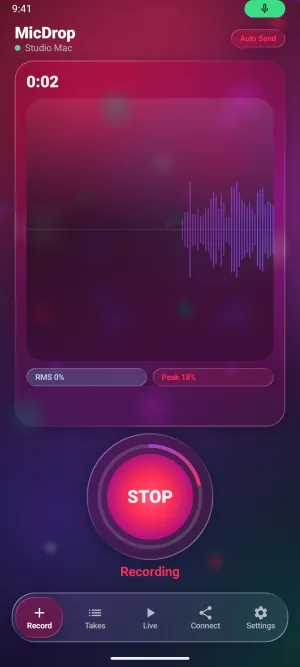
One big record button, a live waveform and level meters, and takes saved as proper WAV files.
Scan the QR code in the plugin's Connect tab. You can also pick your computer from Nearby devices or type its IP address, then approve the phone in the plugin.
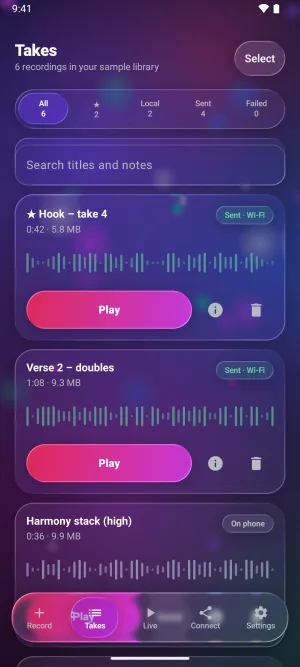
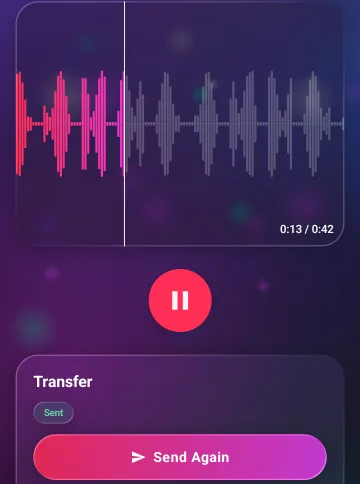
With Auto Send on, each take goes to your computer as soon as you stop. Recorded while away? Takes wait on the phone and send when you reconnect.
Every file is checked with a SHA-256 checksum when it arrives, so a dropped connection can't leave you with a broken take. Failed sends can be retried with one tap.
Your phone and computer need to be on the same Wi-Fi or phone hotspot. USB tethering works too.
Load MicDrop on any track and it starts its own background engine. There's no separate app, service or startup item to manage.
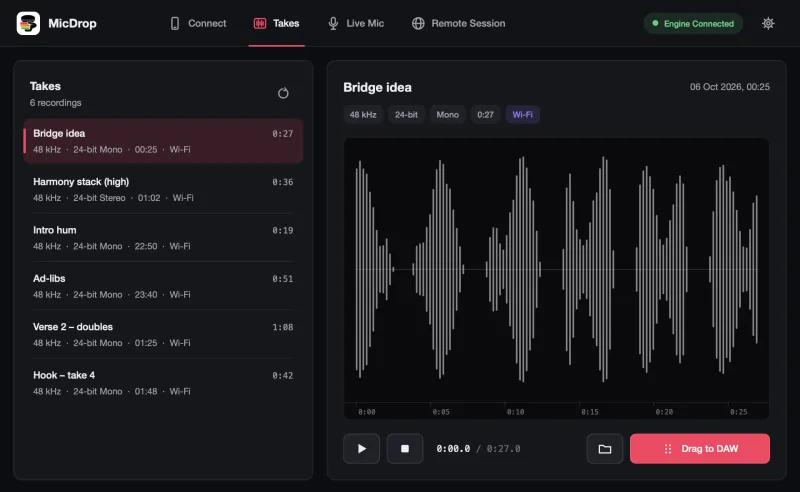
Click a take to see its waveform, format and length, play it, then drag it straight onto your timeline with Drag to DAW.
Every take is also saved to Music/MicDrop/Recordings on your computer, named after the take.
VST3 and AU on Apple silicon Macs (macOS 14+), VST3 on 64-bit Windows 10 and 11. Download it free.
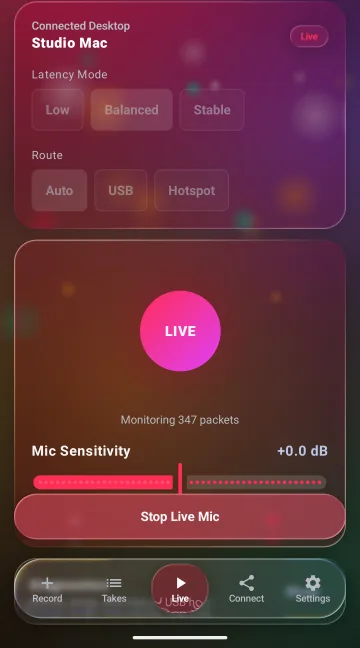
Live Mic streams your phone's microphone to the MicDrop plugin, so you can monitor yourself through your DAW while you practise or sketch an idea.
Live Mic plays inside the plugin; it isn't a system microphone. For the take you keep, record on the phone: that file is full quality and never affected by Wi-Fi.
The producer opens Remote Session in the plugin and shares a six-digit code. The singer enters it in the app, the producer approves, and the two connect directly over the internet.
The singer hears the producer's music and records with a 4-beat count-in, punching in at a chosen bar, in sync with the producer's song position.
Every take recorded in the session is sent straight back to the producer's plugin as a full-quality WAV, placed at its song position.
Audio travels directly between the two devices over an encrypted WebRTC connection. MicDrop's server only helps them find each other and never receives audio.
Some networks (strict firewalls, carrier-grade NAT) can't make direct connections. If one doesn't connect, try another Wi-Fi or mobile network.
Studio Cleanup uses an AI noise-suppression model (DeepFilterNet) running entirely on your phone to reduce hiss, hum and room noise.
There's nothing to sign up for. Takes stay on your phone until you send them to your own computer or to a producer you approved.
The app contains no advertising or analytics SDKs, and this website uses no tracking scripts.
Transfers on your local network aren't encrypted, so use your own Wi-Fi or hotspot. Remote Session connections are encrypted. Read the privacy policy.